 Introduction
Get started
Basics
Sampler
Synthesizer
Mixer
Sample Store
Projects
Troubleshooting
AUv3
Credits
Projects
Overview
Tap on the last Page to see the projects view (see Basics 2.4).
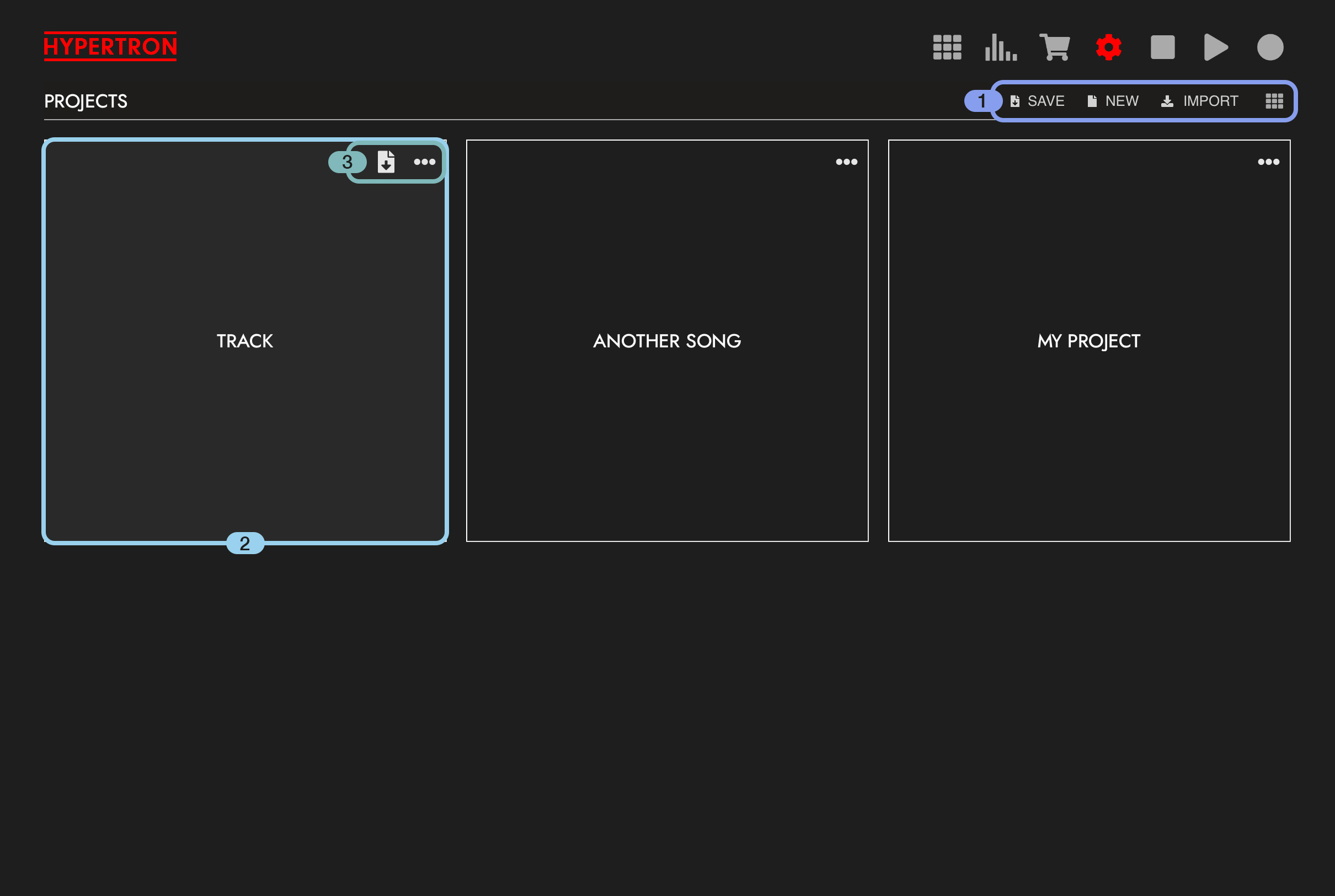
In this view you can add new projects and manage existing ones.
Your existing projects will be shown here.
Your existing projects will be shown here.
1Toolbar
1
On the right side you will find the following buttons, from left to right:

1.1.SAVE
Tap this button to save the project. A window will appear, simply type in the filename and tap the CONFIRM button.1.2.NEW
Tap this button to start a new, blank project. Everything will be reset: all the Pads, Patterns, Takes, Groups, Effects and so on.1.3.IMPORT
Tap this button to import an existing Hypertron project ( .htron extension ) from the FILES app.1.4.GRID / LIST
Tap this button to switch between Grid View and List View.1.4.1.GRID VIEW
When the Grid View is active, projects are displayed as large tiles, with the newest projects first. On iPhone, the tiles are arranged side by side, allowing horizontal scrolling. On iPad, the tiles are arranged in rows, allowing vertical scrolling.1.4.2.LIST VIEW
When List View is active instead, projects are displayed in a simple vertical list, sorted by filename, allowing vertical scrolling.2Project
2
Tap on the project in order to load it.
3Project Toolbar
3
Inside a project you will find a toolbar at the top right, with two possible buttons, from left to right:

Tap this button to quickly save this project.
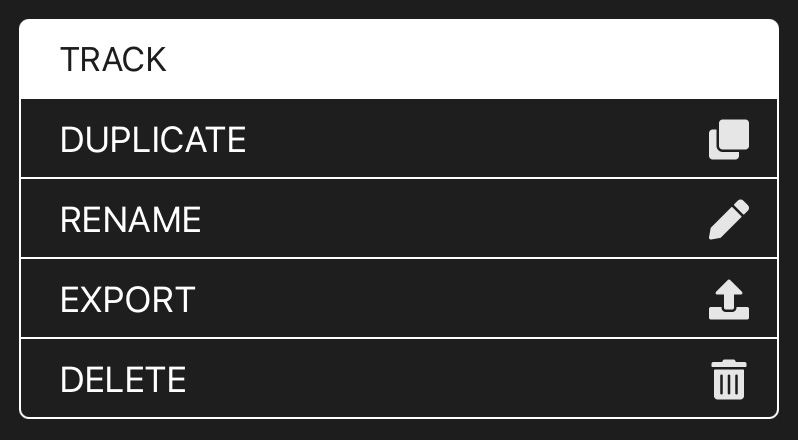
There will a list of options to choose from:
3.1.QUICK SAVE
(optional)Tap this button to quickly save this project.
3.2.MENU
Tap the button with the three dots to open a menu.There will a list of options to choose from:
3.2.1.DUPLICATE
Tap this option to duplicate the project.3.2.2.RENAME
Tap this option to rename the project.3.2.3.EXPORT
Tap this option to export the Hypertron project ( .htron ) to either share it or store it locally using the FILES app. ( Only available in PRO IAP )3.2.4.DELETE
Tap this button to delete the project.